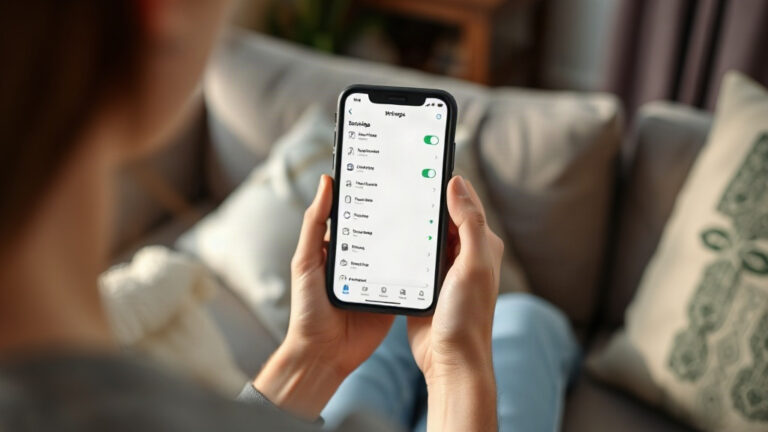
How to protect your photos from deletion
It's possible to prevent an unintentional exclusion from becoming a permanent loss.
An extra safety net
An app runs in the background and collects everything you delete. Instead of disappearing, the file goes to a reserved area and stays there for as long as you choose.
This works for photos, videos, audio files, and documents. To recover them, simply find the file in the list and confirm.
Step-by-step initial setup
The protection only applies to what you delete after activating it, so the sooner the better.
It creates a trash can on your phone and doesn't require root access to work.

This is necessary because without it, the app cannot detect deletions.

You can limit the number of photos and videos if you want to save space.

Between one and four weeks is usually a good balance between protection and space.

So it continues running in the background, even when the app is closed.
Saving to your phone is no substitute for the cloud
The trash can on your phone itself saves you from accidental deletion. It doesn't save you from a fall, theft, or malfunction.
Also enable automatic uploading to the cloud in Google Photos. With both layers, you'll cover almost all cases.
What the protection doesn't cover
Protection begins the moment you activate it. It does not help in these cases:
- Photos deleted before installing the app.
- A factory restoration.
- A memory card formatted on another device.
- Deleted files within apps that don't go through the gallery.
How to avoid losing photos again
- Extend the time limit if the app allows it.
- Review what has been stored before emptying it.
- Keep what is irreplaceable off your phone as well.
- Check from time to time to see if the app is still active.

1. Dumpster
Google Play
Create a trash bin on your phone and save deleted files for the period you set.
You can recover it with a single tap and you don't need root access.
Download on Google Play
2. Google Photos
Google Play
It takes care of the cloud aspect: it sends each new photo and has its own recycle bin that can last up to 60 days.
It backs up your data when you connect to Wi-Fi.
Download on Google Play
3. Files by Google
Google Play
It helps free up space on your phone, which leaves more memory available for the trash can.
It shows the phone's folders, including WhatsApp folders.
Download on Google PlayFrequently Asked Questions
Does it work with the app closed?
Yes, it continues running in the background.
Does it take up a lot of space?
The same as the files he keeps. With a shorter timeframe, it takes up less space.
Does it protect what I deleted before?
No. Only from the moment you activate it.
Can I choose the file types?
Yes. You can limit it to photos and videos.
Does it replace the backup?
No. If you lose your cell phone, the trash can goes with it.